SAP Cloud ALM Connector 1.0.0.0
The SAP Cloud ALM Connector publishes job definitions and job execution data from RunMyJobs to SAP Cloud ALM for Job and Automation Monitoring.
Setup
Setting up a service in SAP Cloud ALM
Before you use the connector, create a service in SAP Cloud ALM.
-
Open your SAP Cloud ALM tenant in a web browser.
-
Navigate to Administration > Landscape Management > Services & Systems.
-
Click Add > New Service.
-
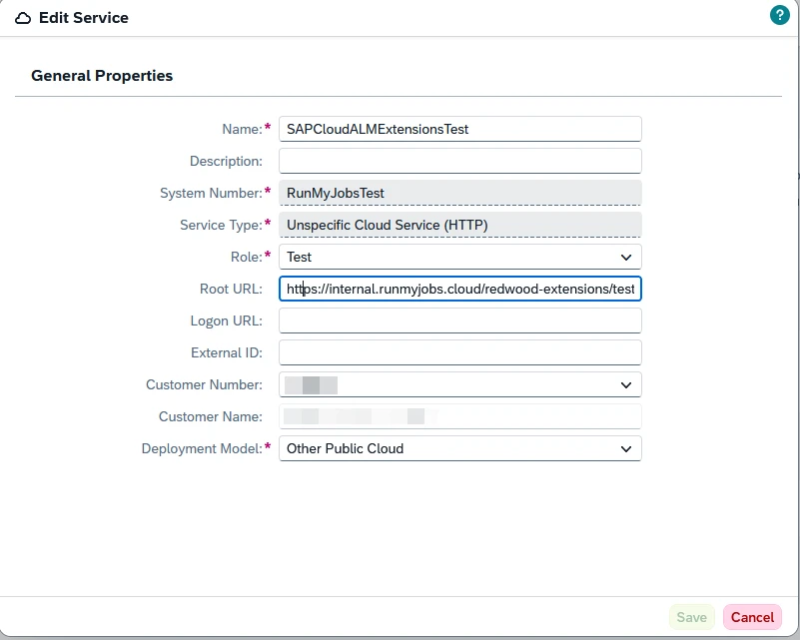
Set the Service Type to Unspecified Cloud Service (HTTP) and fill out the other required fields, Enter the base RunMyJobs URL that SAP Cloud ALM should use to redirect users to job run details, then click Save.
-
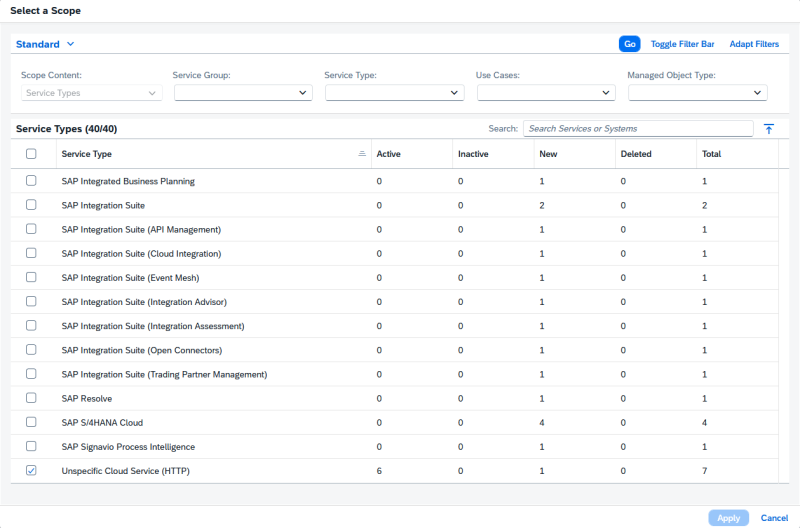
Select a scope to show by clicking the bulls-eye icon in the upper-right corner and then the Service Type Unspecified Cloud Service (HTTP).
-
Open the service and note the Service ID displayed at the top of the page.
Note: You will use this Service ID when you run the publish job.
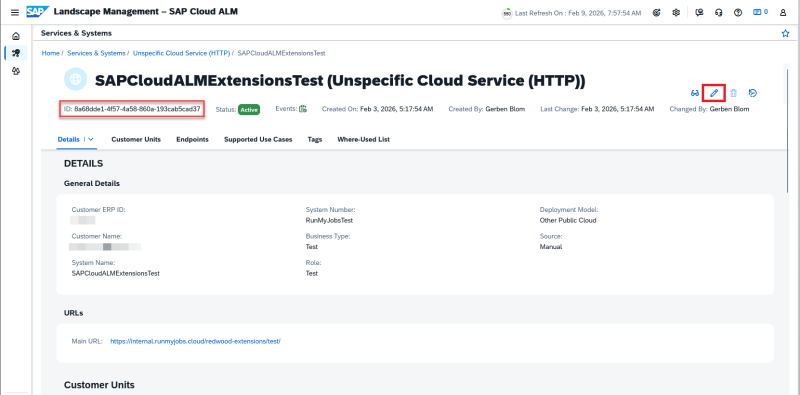
Note: SAP Cloud ALM uses the Root URL to navigate from Job and Automation Monitoring views to the corresponding job run details in RunMyJobs.
Installing the connector from the Catalog
To install the connector from the catalog:
-
In RunMyJobs, open the Catalog.
-
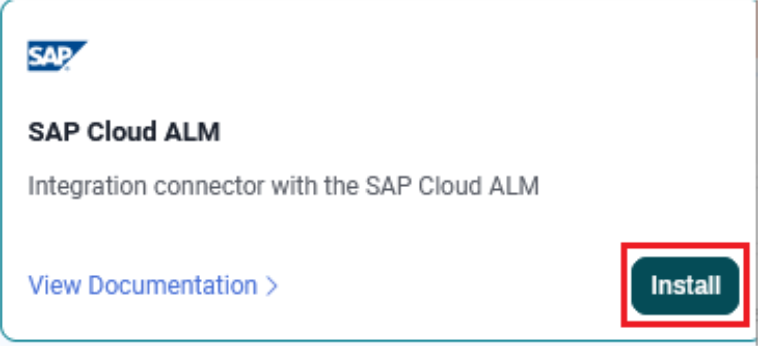
Locate SAP Cloud ALM.
-
Click Install.
Creating a SAP Cloud ALM connection
Create a connection so RunMyJobs can authenticate to SAP Cloud ALM.
-
Navigate to Configure Hub > Connections.
-
Click New.
-
Select SAP Cloud ALM as the connection type.
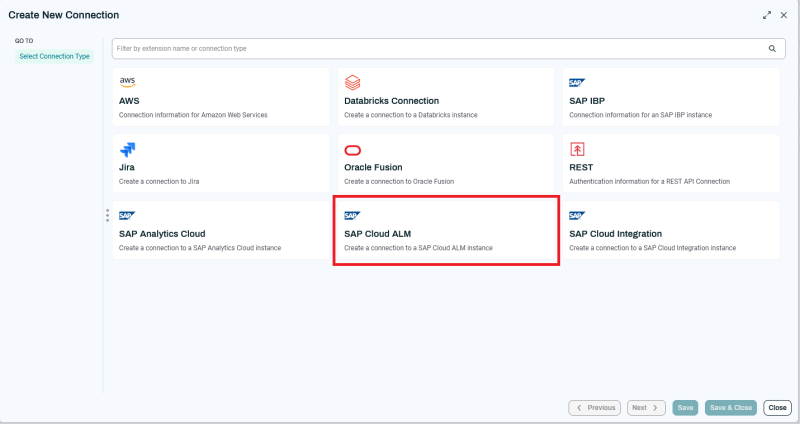
- Click Next or Basic Properties and enter a name and description.
-
Click Next or Security and assign roles that can access the connection.
-
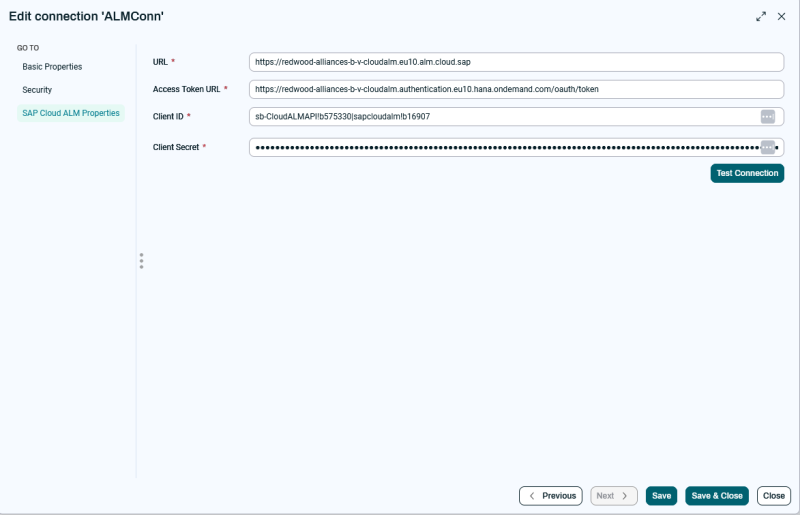
Click Next or SAP Cloud ALM Properties and and enter the required values:
-
URL
-
Client ID
-
Client Secret
-
-
Click Test Connection to verify the connection.
-
Click Save & Close.
Procedures
Submit a job to publish data
The connector provides a job definition that publishes job definitions and job runs to SAP Cloud ALM.
-
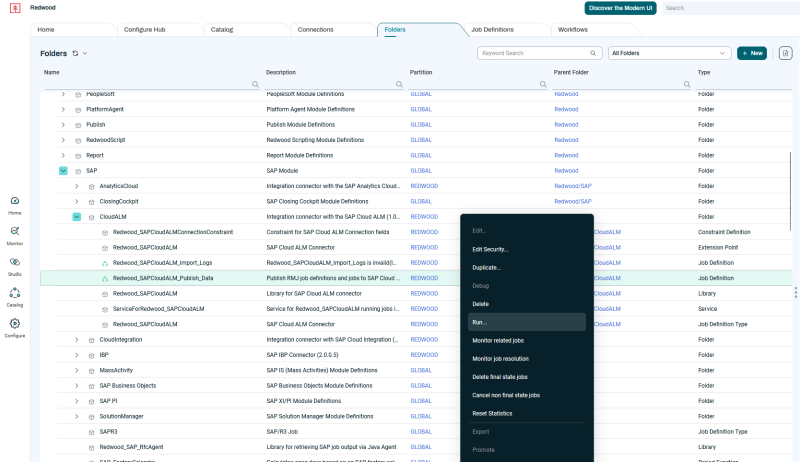
Navigate to Configure Hub > Job Definitions.
-
Right-click the Redwood_SAPCloudALM_Publish_Data job definition and select Run.
-
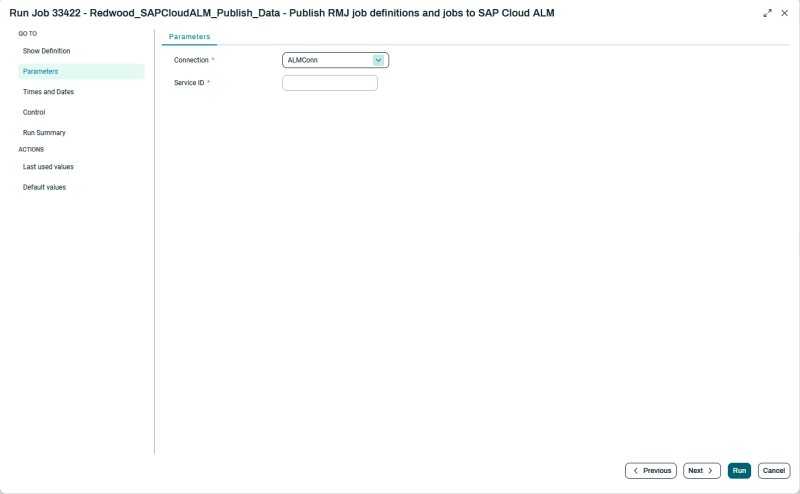
Enter the required parameters:
-
Connection – Select the SAP Cloud ALM connection created before.
-
Service ID – Enter the Service ID from SAP Cloud ALM noted above.
-
-
(Optional) Set up a schedule to run the job on a recurring basis (e.g., every 5 minutes).
-
Run the job.
View published data in SAP Cloud ALM
After the job completes, view the published data in SAP Cloud ALM.
-
In SAP Cloud ALM, navigate to My Home.
-
Select Operations > Job & Automation Monitoring.
-
Select a scope to show by clicking the bulls-eye icon in the upper-right corner and then select the service you created earlier.
-
Open the displayed card to view published jobs and job runs.
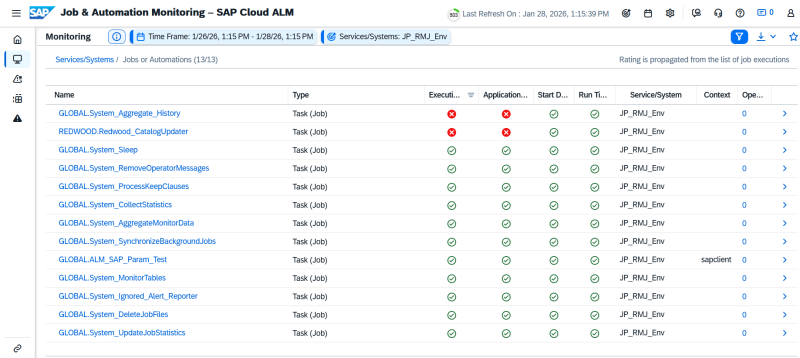
Data published to SAP Cloud ALM
Job definitions
When the connector publishes job definitions to SAP Cloud ALM, it includes the following information:
-
A unique identifier for the job definition
-
The job name
-
The job description, when available
-
The job type
-
Context information derived from job parameters
-
Executables associated with the job definition
-
Schedule information for the job
-
Additional metadata such as application, partition, and navigation information
For job chains, the connector expands the chain and publishes the individual steps that make up the chain.
Job runs
When the connector publishes job runs to SAP Cloud ALM, it includes the following information:
-
A unique identifier for the job definition
-
A unique identifier for the job run
-
The job group associated with the run
-
Planned start time
-
Actual start time
-
End time
-
Event time
-
Execution status
-
Execution status rating
-
Application status information, when available
The connector maps execution statuses so that SAP Cloud ALM reflects completed, failed, or unknown job outcomes.
Notes
-
The connector publishes job definitions and job execution data from RunMyJobs to SAP Cloud ALM.
-
The connector provides a dedicated job definition for publishing data.
Troubleshooting
Debug mode
Use debug mode to inspect the data that the connector sends to SAP Cloud ALM and to identify errors during execution.
-
When you submit the publish job, set Out Log to Debug.
-
If the job completes successfully, open stdout.log to review the JSON request payloads generated for:
-
Job definitions (
jam.def) -
Job runs (
jam.run)
-
-
If the job finishes with an Error status, open stderr.log to review the error details.
Limitations
-
The connector synchronizes only top-level jobs.
-
The connector does not synchronize nested jobs or nested job steps.
-
Only one publish job can run at a time for a given SAP Cloud ALM connection.